Eyes for AI — User Guide
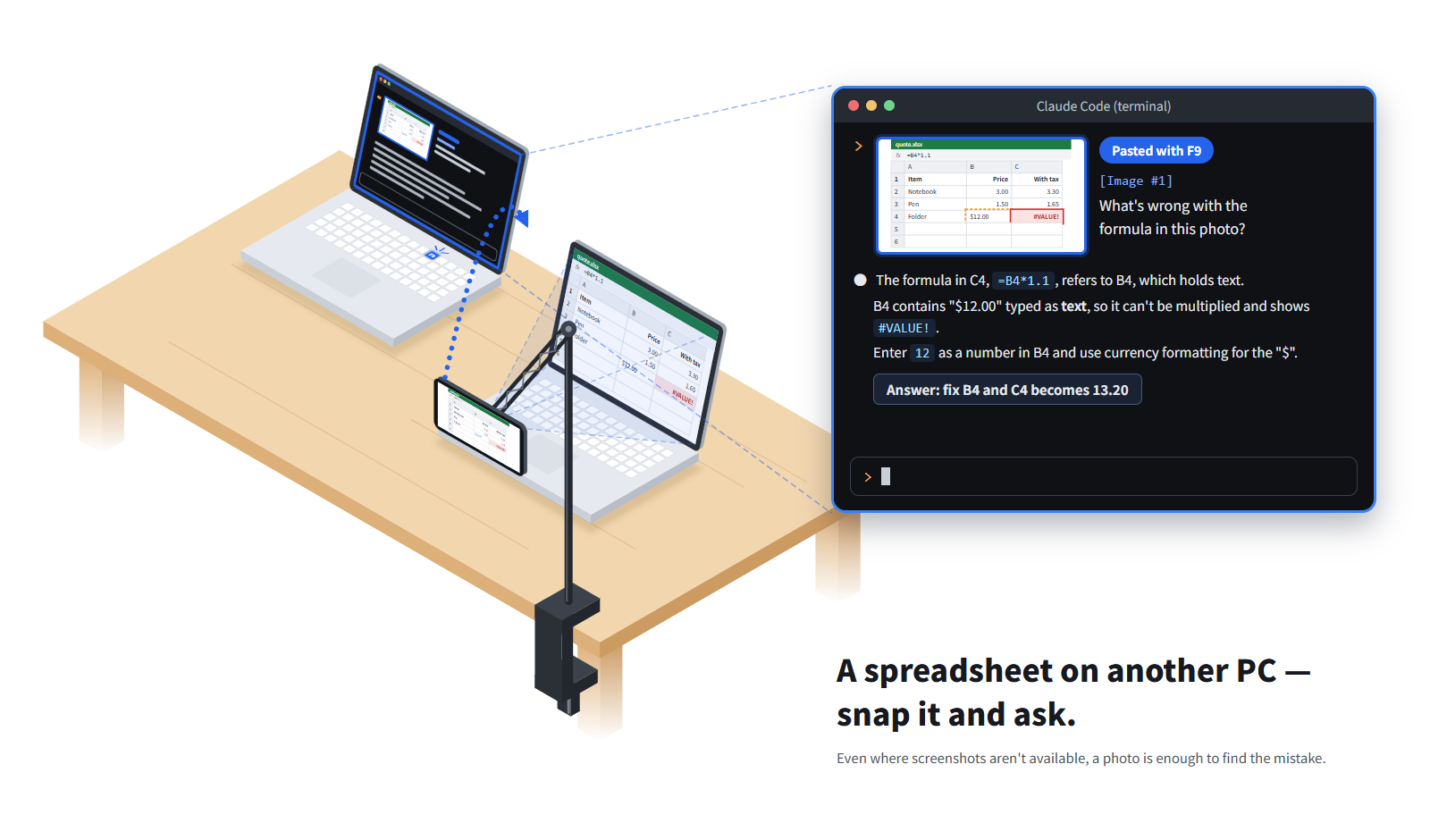
Give your AI eyes. Snap another screen or a sheet of paper with your phone, and it lands in your AI chat.
1. What you need
| Item | Details |
|---|---|
| Android phone | Android 8.0 or later. This is the camera. |
| Windows PC | Windows 10 or 11 (64-bit). This is where your AI chat runs. |
| Wi-Fi | Your phone and PC must be on the same Wi-Fi network. |
| Phone stand | A desk arm or stand that holds your phone steady above or in front of what you want to photograph. |
| Phone charger | Recommended. Keep your phone plugged in while you use it. |
Eyes for AI works with any AI chat that accepts pasted images, such as Claude Code or ChatGPT.
2. Install the two apps
Eyes for AI has two parts: an app on your phone (it takes the photo) and an app on your PC (it receives the photo and pastes it into your AI chat). You need both.
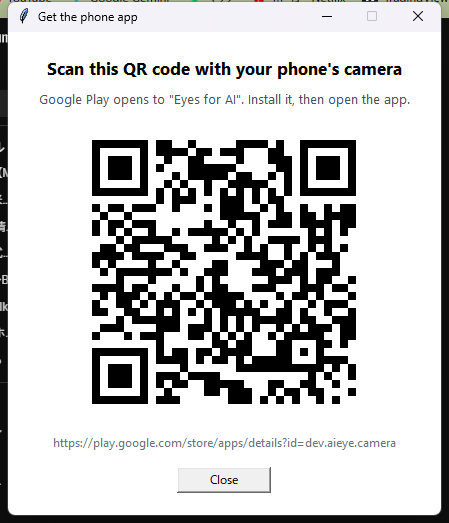
You can show the QR code again any time: right-click the tray icon and choose .
3. Connect your phone over Wi-Fi
4. Set up your phone
5. Take a photo
2026-11-02). If the AI misreads small text, give it that file instead.6. Tips
- Paper and whiteboards: homework, receipts, forms, business cards, meeting notes — anything you can point the phone at.
- Sharper photos: get the screen or paper to fill most of the view, and avoid glare from lights.
- Auto-crop: in the tray menu is on by default. Turn it off for paper or objects that aren't screens, if the crop looks wrong.
- Battery: wireless use drains the battery faster. Keep the phone on its charger.
7. Troubleshooting
| Problem | What to do |
|---|---|
| "Can't find your phone on this Wi-Fi network" | Open the Eyes for AI app on your phone. Check that the phone and PC are on the same Wi-Fi network (not a guest network). |
| "That code isn't right" | Enter the code shown on the phone right now. It changes after each pairing. |
| Nothing is pasted | Click in the AI chat's message box first, then press F9. Apps running as administrator only accept pasting from apps that also run as administrator. |
| It worked, then stopped | Open the phone app again. If it keeps stopping, set the app's battery usage to Unrestricted in Android settings. |
| The photo is blurry | Make sure nothing moves the phone, and try moving it slightly closer or farther. |
| Something else | Right-click the tray icon and choose . It tries to reconnect and tells you what to do. |
8. Advanced: connect with a USB cable
You can also connect with a USB cable instead of Wi-Fi. It's a bit faster and charges the phone, but it needs a developer setting on your phone.
- On your phone, turn on Developer options (Settings › About phone › tap Build number 7 times), then turn on USB debugging.
- Connect the phone to the PC with a USB cable. When the phone asks "Allow USB debugging?", tap Allow.
- The PC app connects by itself. While a USB cable is connected, it uses USB; otherwise it uses Wi-Fi.
9. Your photos and privacy
Photos go straight from your phone to your own PC. They are never sent to our servers. Whether a photo is then sent to an AI service is up to you — it happens only when you send your chat message. Please follow your workplace's rules about photographing screens and documents.
10. Uninstall
PC: Settings › Apps › Installed apps › Eyes for AI › Uninstall. Phone: long-press the app icon › Uninstall.